How to Easily Validate SPF, DKIM, and DMARC Configuration
Why Is Validating SPF, DKIM, and DMARC Important?
If you have already configured SPF, DKIM, and DMARC in DNS, don’t immediately assume everything is secure. An invalid configuration can cause emails to go into the spam folder or even be rejected by the receiving server. That’s why validation is very important to ensure the configuration you created actually works.
If you are still confused about what SPF, DKIM, and DMARC are, you can read the article Email DNS Security Configuration Guide (SPF, DKIM, DMARC) which briefly explains these three things.
Then we can validate this configuration using several easy and fast methods. In this article, I will explain the steps using commonly used tools such as dig, WhatsMyDNS.net, and intoDNS.
1. Check SPF with dig
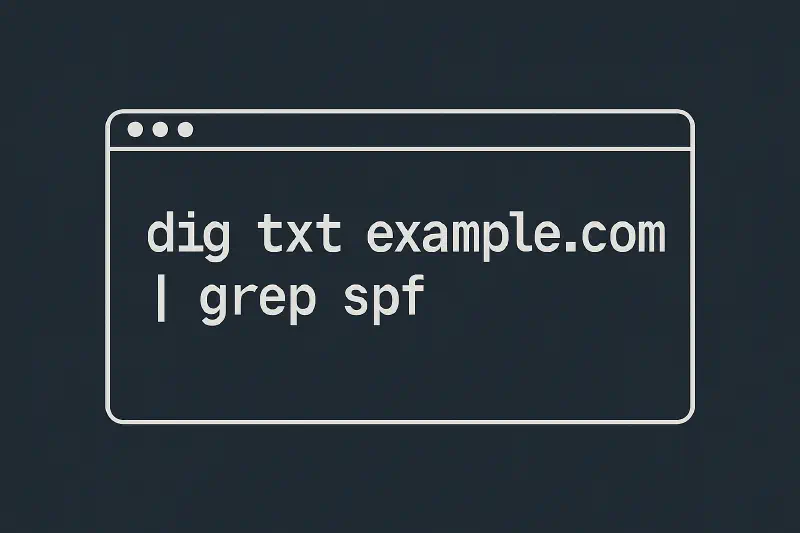
Dig is a very useful tool for checking DNS records. You can use it to check the SPF record with the following method:
If you are using a terminal or server, you can run the dig command like this:
dig txt namadomainmu.com
The result will show the active SPF record. Example:
"v=spf1 include:spf.protection.outlook.com -all"
Make sure there is only one SPF record. If there is more than one, the receiving server may consider it an invalid configuration.
2. Check DKIM with dig
For DKIM, you need to know the selector being used. The general DKIM lookup format is:
dig txt selector._domainkey.namadomainmu.com
For example, if using selector1, then:
dig txt selector1._domainkey.namadomainmu.com
If the configuration is correct, you will get a long output containing the DKIM public key. Usually selectors differ depending on the email service used. Below is an example if using Outlook or Office 365:
"v=DKIM1; p=MIIBIjANBgkqhkiG9w0BAQEFAAOCAQ8AMIIBCgKCAQEAsLX1L5ZnRfJM83ZePmzjYz0E3A7M3ATFVHB" "6uXR835Pm4yctv3MDlIK8+QgthlKpHb0kbnmsy+Ahd7UjTifUiEwxMTbMeH52oKDMuBDMWU9JNtE36GAuZ0BhWWVzLHTpDaDwNwbeHW0E54lL+JuR5VTcrPgQhpz/GMm" "mEoY+PuT1yGF1cxzTib66fJdsay4uHYRTCf3kt7dHvRjweJrB4Icqv2o+InrczO6TizowQp0ha3Vn5LnrdbTxDNcPPrsx/fRQdIIjmasj+kRFL/OuplOOWSybqp3A7sj" "PzV2T8xv4d7SRob9HWf1DlS85oHTUTUpuz5OjxyfDLCHE81J5swIDAQAB"
3. Check DMARC with dig
DMARC can be checked with the following command:
dig txt _dmarc.namadomainmu.com
Example of a correct result:
"v=DMARC1; p=reject; rua=mailto:[email protected]"
If you are not sure yet, you can start with p=none for the testing stage, then increase it to quarantine or reject.
4. Check Global DNS Propagation with WhatsMyDNS.net
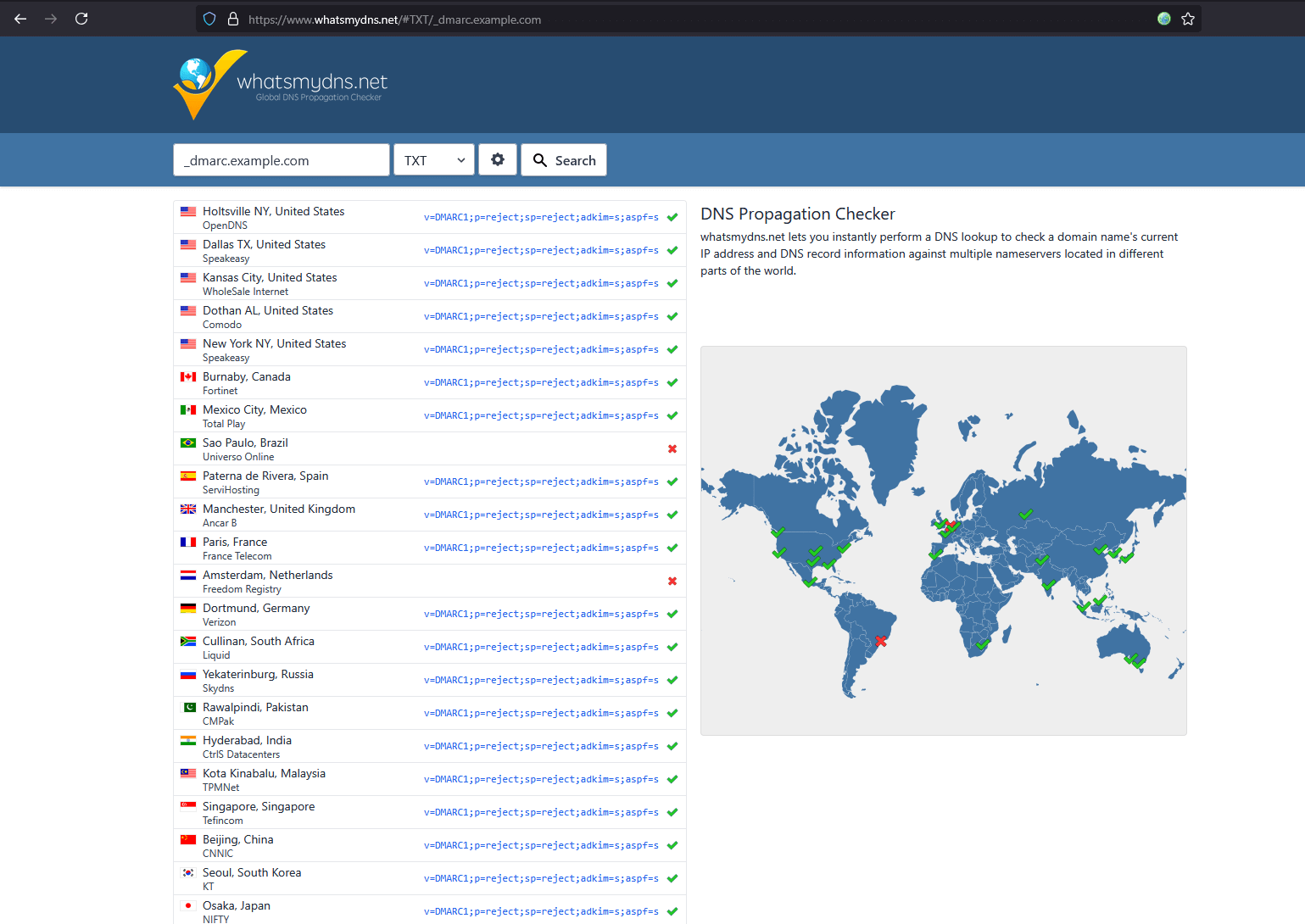
After making changes, we can also check whether DNS records have propagated worldwide using whatsmydns. This is important to ensure that the changes we made have been received by DNS servers around the world. It is very common if not all DNS servers worldwide have received the latest update from the changes we made. This can happen due to TTL being too long or issues with the DNS server we are using.
Steps:
- Enter the domain name or TXT record subdomain (example:
_dmarc.namadomainmu.comor your SPF and DKIM configuration) - Choose record type
TXT - Click the search button
If the results are consistent and appear across various locations, it means DNS propagation is working well. If not, wait a while and try again. However, if it has been more than 24 hours and it still does not appear, there may be an error in your DNS configuration that needs to be fixed. Generally this happens because the DNS server you use is not reliable or there is a configuration error on the DNS server. For this case, we can check DNS configuration using another tool such as intoDNS.
Check DNS Health with intoDNS
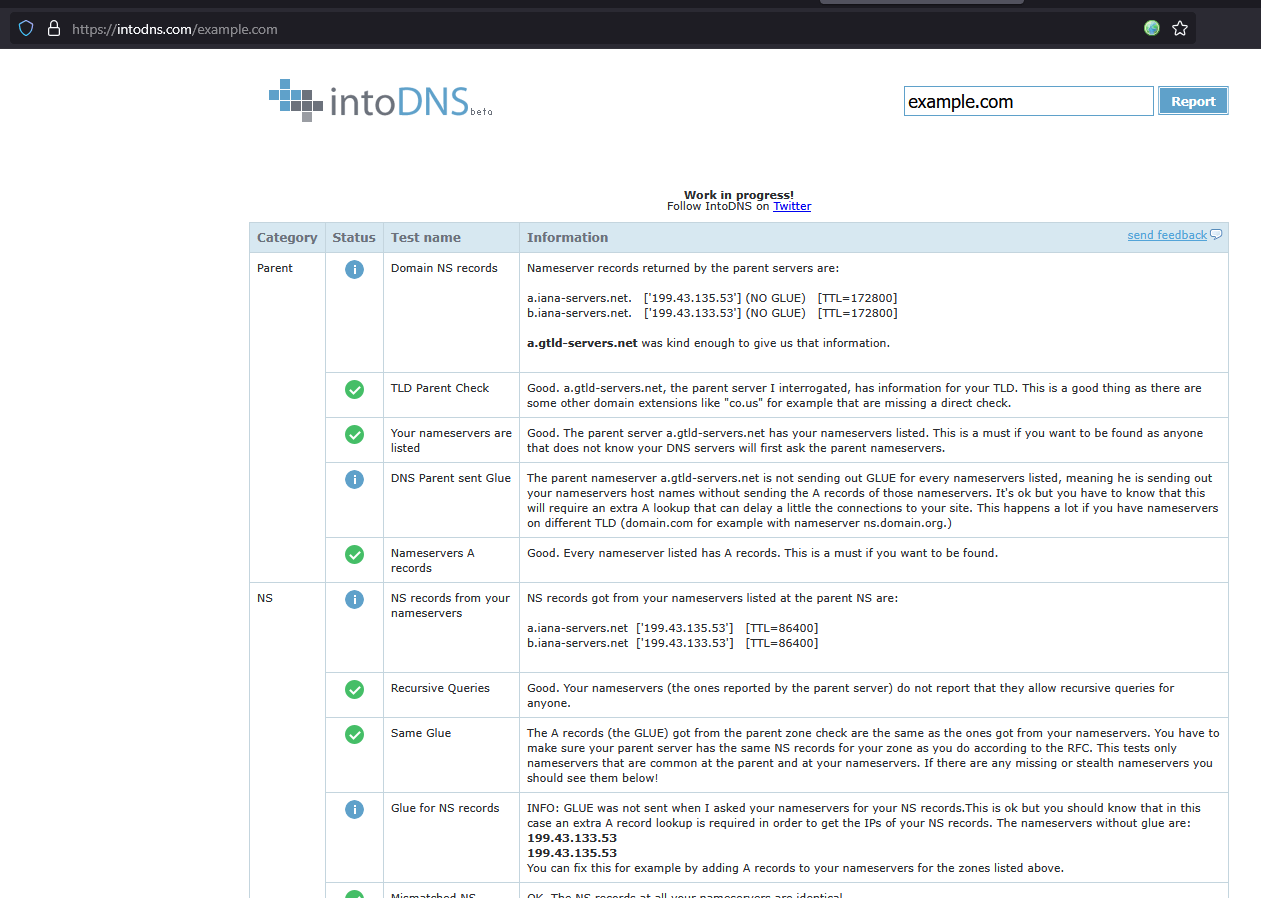
For DNS checking, we can use intodns.com to ensure your DNS configuration is healthy and has no issues.
Enter your domain, and Intodns will provide complete information such as:
- NS and SOA records
- Whether your email server is reachable
- Common errors in DNS configuration
Common configuration issues that often occur are:
- Invalid nameservers or servers that cannot be reached
- Master and Slave servers not syncing properly, which can be seen from differences in the serial number in the SOA record
I have encountered this before and it can be read in the articles It’s was DNS and There is no way it’s DNS which explain how DNS configuration mistakes can cause services to not function properly.
By default, if there are errors, intoDNS will provide recommendations for fixing them.
Additional Tips
- Use only one SPF record per domain.
- Avoid typos in the DKIM selector.
- Use an email
ruain DMARC to receive reports (you can create a dedicated one, for example[email protected]). - Always wait about 1–24 hours for DNS propagation before validating again.
- Keep a backup of your DNS configuration so it is easy to roll back if something goes wrong.
Conclusion
Validating SPF, DKIM, and DMARC is very important to ensure your emails reach their destination and are not considered spam or spoofing. With the help of dig, WhatsMyDNS, and intoDNS, you can easily ensure everything is configured correctly.
FAQ
Q: What if I don’t know my DKIM selector?
A: Check the documentation of the email service you are using. Each service may have different selector names. Usually they recommend default selector names such as selector1 or default.
Q: How long does DNS propagation usually take?
A: Usually between 1 to 24 hours depending on the TTL and DNS provider.
Q: Should I use DMARC even if I already have SPF and DKIM?
A: Highly recommended. DMARC provides additional policy control and helps you know if your domain is being abused.
Hopefully this guide helps you validate SPF, DKIM, and DMARC easily. If you have further questions, feel free to ask!