My Daily VIM

VIM - Text Editor
You might already be familiar with this text editor, it’s VIM or Vi Improved. Vim is a terminal-based text editor that is very efficient and can significantly speed up work. Vim is often considered difficult because many users are not yet familiar with its default key bindings.
VIM itself has existed since 1991, and it is still widely used by developers, system administrators, and many others. VIM is also a very lightweight and fast editor that can be accessed directly through the terminal. VIM is an improved version of Vi, which was the default text editor in UNIX operating systems. Usually VIM/Vi is already installed on UNIX-based operating systems such as Linux, macOS, and BSD.
Below are some tips and shortcuts that I frequently use in my daily workflow with VIM. Hopefully they are useful.
Vim Navigation
h = left
j = down
k = up
l = right

$ = end char of line
^ = first char of line
Switching Modes
ESC = Normal mode
i = Insert Mode
v = Visual mode
C-a = Visual block mode
In Normal Mode
:wq = Write and Quit
:q! = Quit without saving any change
:w = write
:e = edit file
:colorscheme desert = change colorscheme to desert
/<any text> = search <any text> using regex

a = append text
o = insert below line
O = insert above line

gg = go to first line
G = go to last line
C-g = file information
:<any number> = go to line <any number>
C-u = up one page
C-d = down one page
u = undo
C-r = redo
dd = delete line
dw = delete word
yy = copy / yank line
p = paste
Multi-line Comment
To comment multiple lines at once, we can use visual block mode. The steps are:
enter visual block mode → select the lines to comment → press Shift+i → type the comment symbol # → press ESC, ESC.
Save as Root
If you want to save a file with root privileges, for example when editing a system configuration file that only root can modify, you can use the following command:
:w !sudo tee %
Extensions and Plugins
Vim has many plugins that can improve productivity, such as:
- NERDTree for file explorer
- CtrlP for fuzzy finding
- ALE for linting
and many more.
These plugins can be installed using plugin managers such as vim-plug, Vundle, or Pathogen.
If you want to learn more about VIM, you can read the official documentation at
https://www.vim.org/docs.php
You can also try Vim Adventures at https://vim-adventures.com/ — a game that teaches how to use Vim in a fun way.
Another great reference for Vim shortcuts is:
https://vim.rtorr.com/
Bonus Meme
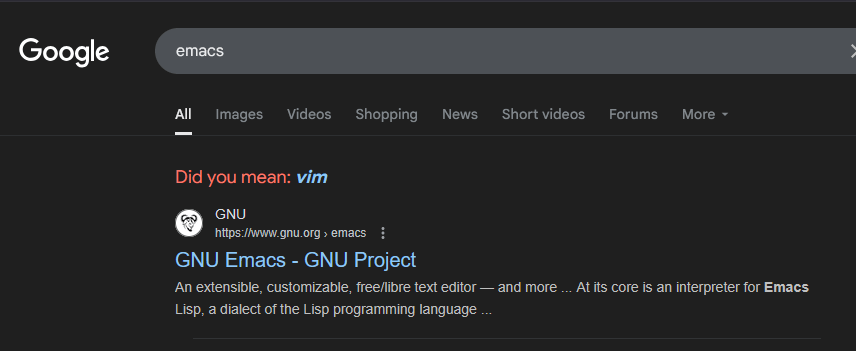
Vim and Emacs users often debate which editor is better. Even Google once made a joke about it.